Isaac Deadgod Tracker: live save tracker and OBS overlay for Repentance+
Isaac Deadgod Tracker is a small desktop app for The Binding of Isaac: Repentance+. It watches your save file while you play and shows what is still missing on the way to Dead God, including the hidden unlock counters the game keeps to itself. It comes with an overlay for OBS, so a stream can show the progress without the player alt-tabbing anywhere.
Download for WindowsSource on GitHubVirusTotal
one portable .exe · Windows 10/11 · free
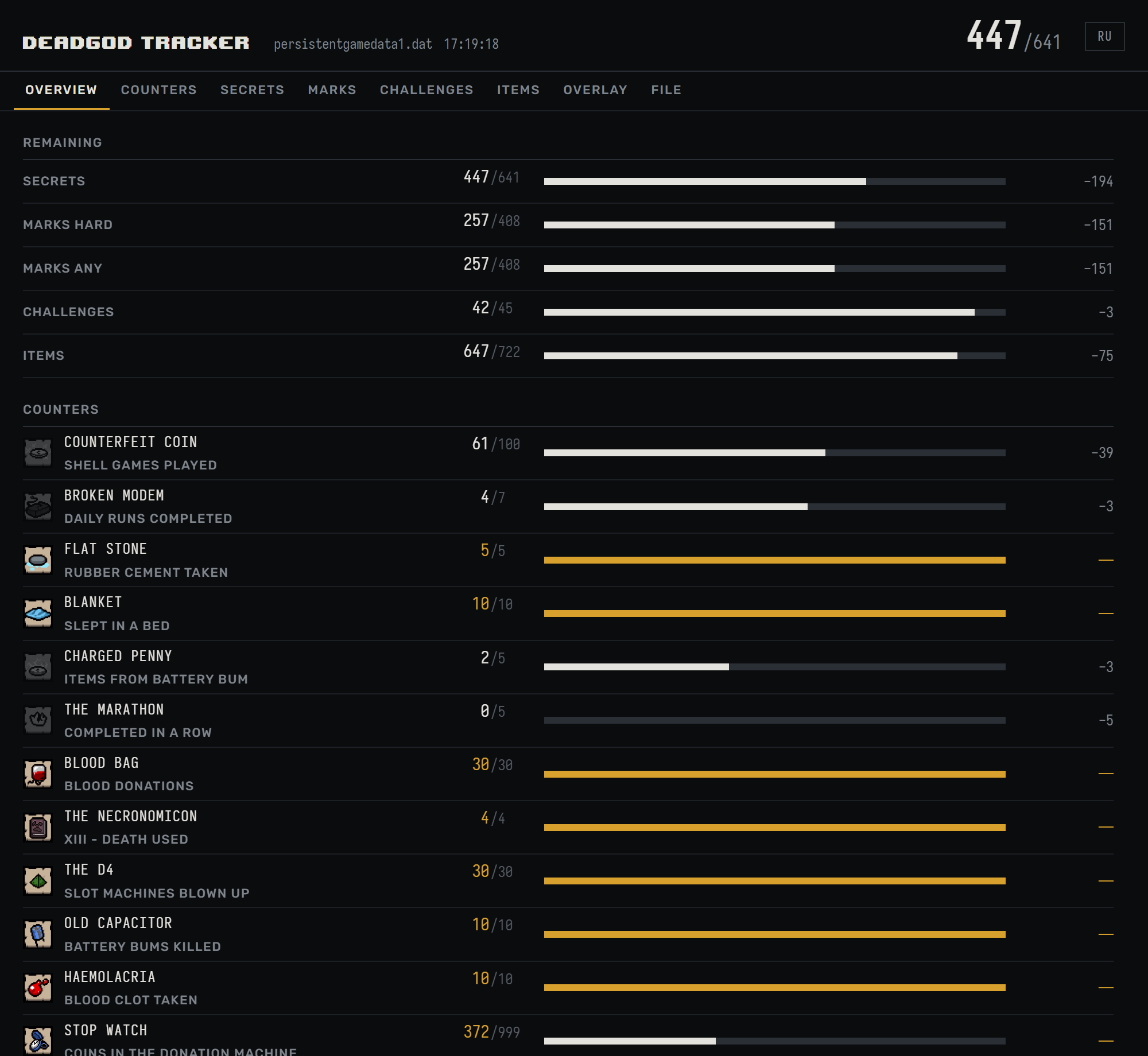
What it shows
The tracker parses the whole save file, so it counts what the game counts, but puts it on one screen instead of four menus:
- Secrets. All 641 Repentance+ achievements. The number in the header is your count out of 641, the same scale Dead God is measured on.
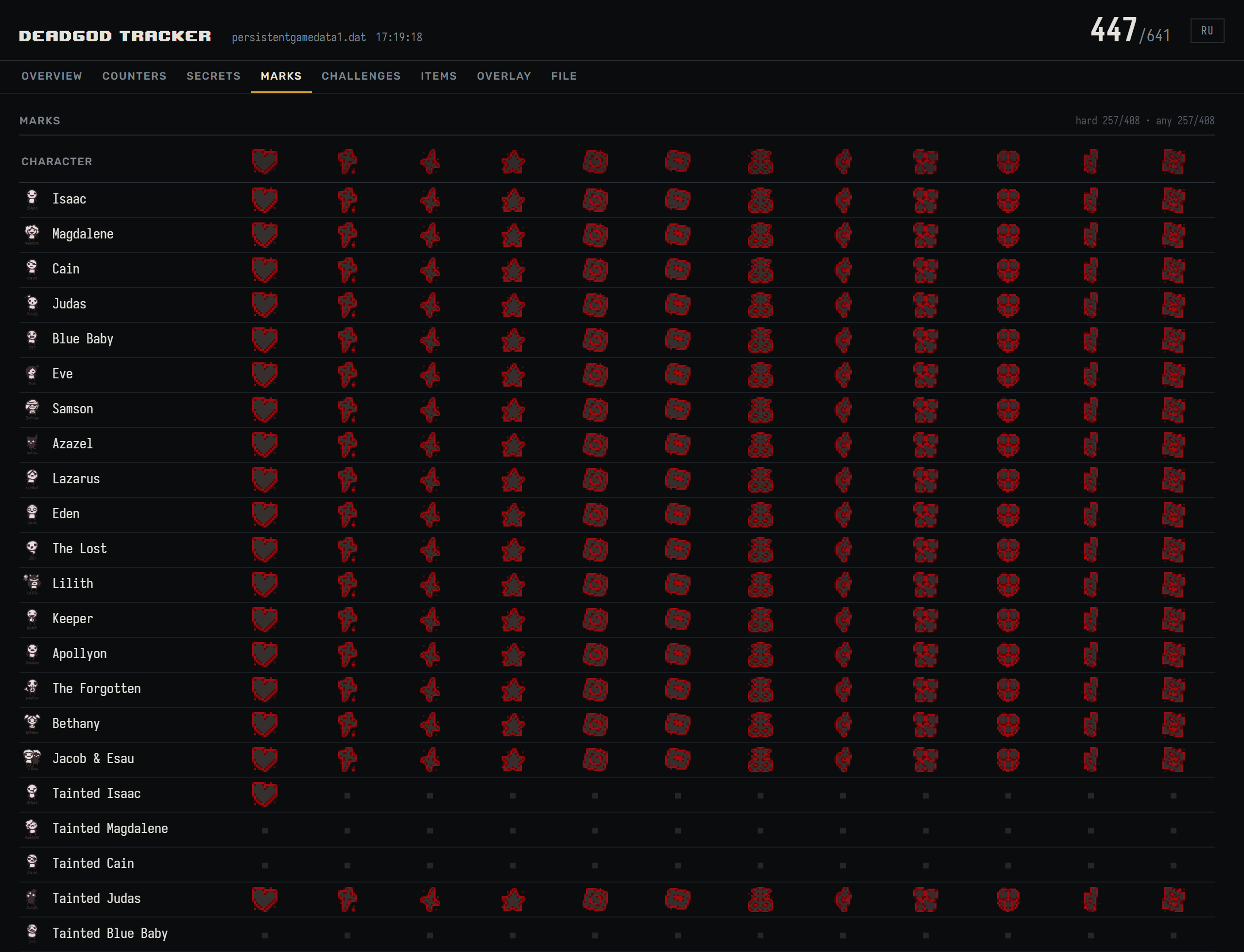
- Completion marks. The full 34 characters × 12 bosses matrix, Normal and Hard apart, plus the Hard total out of 408 that Death Certificate asks for.
- Challenges and items. 45 challenges and 719 collectibles, filtered to what is still locked.
- Hidden counters. The 19 grinds that have no progress bar anywhere in the game, plus the raw event counters for donations, deals, streaks and runs.
- A live feed. Every unlock that happens while the tracker is running, timestamped, so you can tell whether that last floor counted.
19 blind counters
These are the ones people lose hours to, because the game never tells you where you are. The tracker reads the counter straight out of the file. The first six are on in the overlay from the start; the rest are there to switch on when you go after them.
| Unlock | Needs | What counts |
|---|---|---|
| Counterfeit Coin | 100 | Shell games played |
| Broken Modem | 7 | Daily runs completed |
| Flat Stone | 5 | Runs with Rubber Cement taken |
| Blanket | 10 | Nights slept in a bed |
| Charged Penny | 5 | Items bought from Battery Bum |
| The Marathon | 5 | Daily runs completed in a row |
| Blood Bag | 30 | Blood donations |
| The Necronomicon | 4 | XIII - Death cards used |
| The D4 | 30 | Slot machines blown up |
| Old Capacitor | 10 | Battery Bums killed |
| Haemolacria | 10 | Blood Clots taken |
| Stop Watch | 999 | Coins in the Donation Machine |
| A Small Rock | 100 | Tinted rocks destroyed |
| It Lives! | 11 | Mom's Heart defeated |
| The Polaroid | 5 | Isaac defeated |
| A Forgotten Horseman | 10 | Angel Room items taken |
| The Negative | 5 | Satan defeated |
| A Secret Exit | 3 | Hush defeated |
| Fruity Plum | 10 | Baby Plum defeated |
The overlay for OBS
The overlay is a local page you add as a Browser source. There are five views: counters and secrets, the watched secrets, what is left, the score, or the mark matrix. Icon size, columns, spacing, scale, numbers and the backdrop are all adjustable, and the app tells you the exact pixel size to type into OBS.
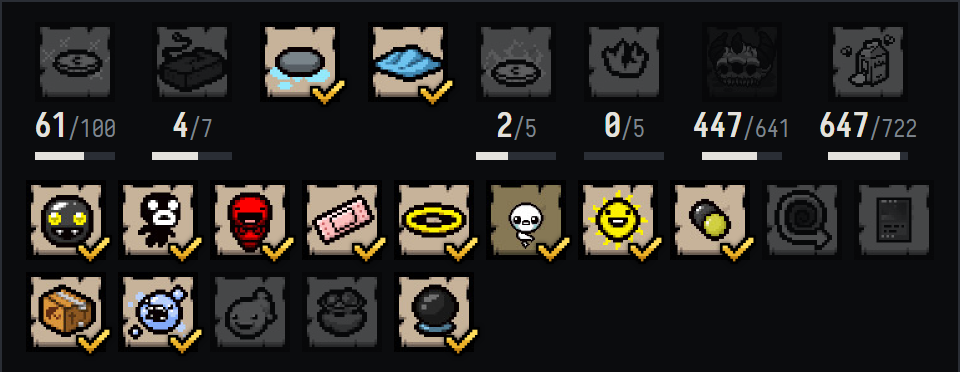
Next to the blind counters, the counters view can show how many achievements you have out of 641, how many items you have touched and how many Hard marks you have toward Death Certificate. Any element can be switched off in the list, dragged by its handle to another place or nudged with the arrows, and each counter can hide its number and bar while keeping the icon.
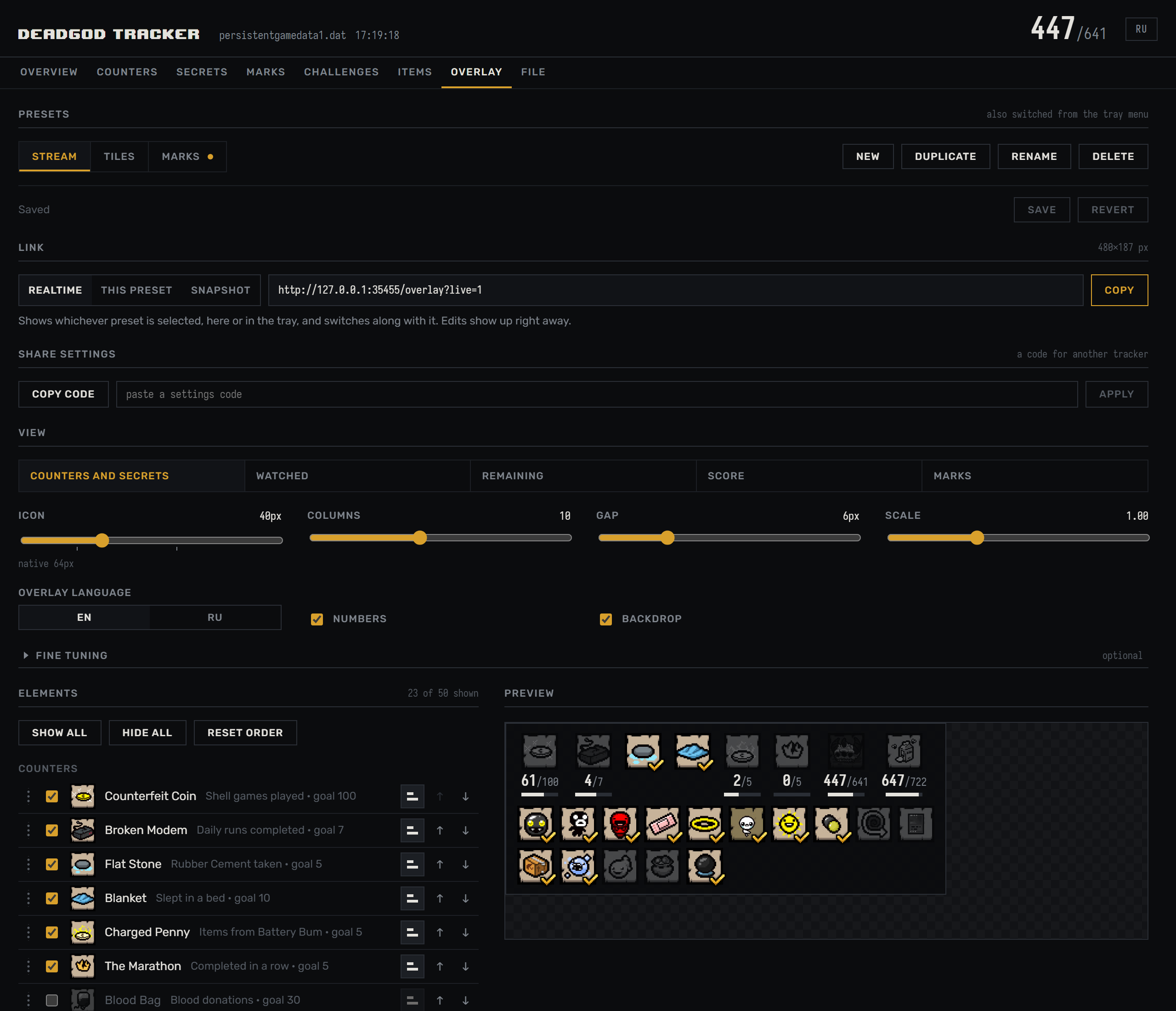
Fine tuning is optional and stays folded until you open it. The tile layout puts the counters and secrets into one grid with a set number of rows, keeps the totals in a column of their own and writes the numbers beside the icons in the game font, so the overlay fits a strip along the edge of the stream. Locked entries can stay in colour or turn grey; unlocked ones can get a check mark, disappear or fade.

Presets
A preset is one complete overlay setup: view, layout, elements, language. Keep as many as you like, say a full board for the start of a stream and a thin strip for the late game, and switch between them with one click on the Overlay tab or from the tray menu, without touching OBS.
Changes you make are a draft until you press Save. A preset with a draft gets a dot next to its name; Revert brings back the saved version. The draft is already live on stream, so you can adjust the overlay and watch the result in OBS as you go. Drafts survive a restart. New starts from the default setup, Duplicate copies the current preset, and presets can be renamed, deleted and reordered by dragging.
Three kinds of link
The link block has a switch with three formats. Pick one, copy, paste into OBS:
| Link | What OBS shows | Good for |
|---|---|---|
| Realtime | Whichever preset is selected, here or in the tray. Switch the preset, the stream follows. | One browser source for everything |
| This preset | Always the same preset, whichever one is selected. Its edits show up right away. | A separate source per OBS scene |
| Snapshot | The current settings baked into the link itself. Later edits do not touch it. | Sharing a fixed look, or old setups |
Links from earlier versions are snapshots and keep working. To move a setup to another computer, use Share settings: it gives a short code that the other tracker applies as a draft.
Where your saves are
Repentance+ keeps its saves in one of two places, and one line decides which: SteamCloud= in Documents\My Games\Binding of Isaac Repentance+\options.ini.
- Steam Cloud on (
SteamCloud=1):Steam\userdata\<account id>\250900\remote, files namedrep+persistentgamedataN.datwith N from 1 to 3. - Steam Cloud off (
SteamCloud=0):Documents\My Games\Binding of Isaac Repentance+, files namedpersistentgamedataN.datwith N from 1 to 3.
The tracker reads options.ini and, on the first launch, picks the most recent slot from the folder the game actually uses. The File tab shows both folders side by side with their exact paths, the Steam account and every slot's progress, marks the one the game writes to, and opens either folder in Explorer. Watching a different slot is one click.
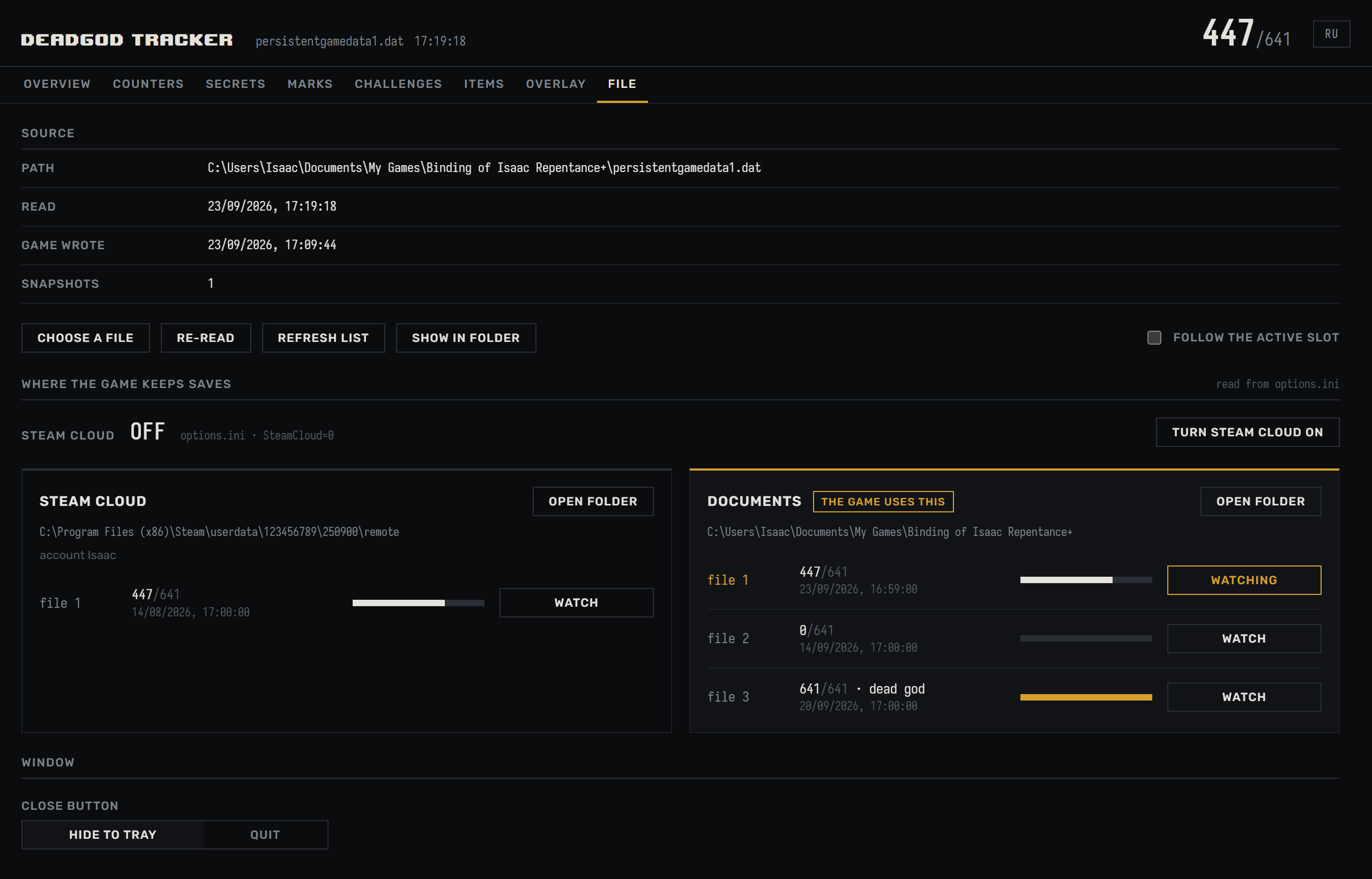
The Turn Steam Cloud on/off button flips that line after a confirmation that shows both folders' progress. It can also copy your slots across; whatever was in the target folder goes to a backup in %APPDATA%\IsaacDeadgodTracker\backups first. The tracker then follows the game to the new folder. The button is locked while the game is running, because the game rewrites options.ini when it closes. For the background, see the Steam Cloud guide and the save file location guide.
Who it is for
It was built for DeadGod%, the category extension where a run goes from a fresh file to Dead God over roughly a hundred hours of play, segmented and streamed. That run needs two things the game refuses to give: a number that says how much is left, and a way to check a blind counter without opening the Secrets menu.
It works just as well outside a speedrun. If you are grinding toward Dead God at your own pace, or you want the mark matrix on a second monitor, the same panel answers the same questions. And if you would rather edit the file than grind it, that is what the save editor on this site is for.
What it does to your files
While it tracks, nothing. The tracker never holds the save file open. Each read is a snapshot: the file is opened for reading with share-delete and share-write, read to the end, and closed immediately. Between reads there is no open handle at all.
That is what keeps the game and Steam Cloud free to replace the file whenever they want. A tracker that holds a handle open the usual way blocks exactly that, and the replace fails with an access error, which is how runs get lost. The repository has tests for this, including one that reproduces the broken behaviour on purpose.
The only writes happen when you press the Steam Cloud button: one line in options.ini and, if you tick the box, a copy of your slots with a backup of what they replace.
How to start
- Download the .exe and run it. There is nothing to install; settings live in
%APPDATA%\IsaacDeadgodTracker. Windows may warn about an unsigned app: the binary is not code-signed, so choose More info → Run anyway. - The tracker finds your save by itself, in the Steam Cloud folder or in Documents, whichever
options.inipoints to. Check the File tab: the watched slot is highlighted, and another one is a click away. Any other file can be chosen by hand. - Play. The panel updates within a second of the game writing the file, and the feed logs what changed.
- For a stream: open the Overlay tab, set up a view, pick a link format (Realtime if in doubt), copy it, add a Browser source in OBS and give it the width and height shown next to the link. Leave Shutdown source when not visible off so the overlay stays connected between scenes.
- The first time you close the window, the tracker asks what the close button should do: hide to the tray or quit. In the tray it keeps watching the save and feeding OBS. The choice can be changed on the File tab or in the tray menu.
What it needs
- Windows 10 or 11 with the WebView2 runtime, which Windows 11 already has.
- A Repentance+ save. Repentance and Afterbirth+ saves are detected too, but the Dead God maths is written for Repentance+ and older files are reported as another edition instead of being tracked.
- Nothing else: no account, no network, no background service. The app talks to itself on localhost.
The source is on GitHub
The whole tracker is published as source: the Rust side that watches the file, the React panel, the overlay, and the tests that prove the reads cannot lock your save. If you do not want to trust a downloaded binary, read the code and build it yourself; the README has the two commands.
Published as source is not the same as open source. The license lets you use the app and build it for yourself, and asks you not to redistribute it, reuse the code in other projects, or sell it.
Questions
Can it corrupt or reset my save?
Tracking only ever reads: the file is opened for reading, copied and closed, and everything else happens on the copy in memory. The one feature that writes is the Steam Cloud switch, and only after you confirm it; if you let it copy slots, the files it replaces are backed up first.
Which save is the live one, Steam Cloud or Documents?
The one options.ini points to. The File tab reads it for you, marks that folder with the game uses this and shows the progress of every slot in both places, so a stale copy is easy to spot.
Does the game have to be closed?
No, it is meant to run alongside the game for hours. The game writes the file when it wants to, the tracker notices and re-reads it. The only exception is switching Steam Cloud: close the game first, or the setting will be overwritten when it exits.
I closed the window and the overlay still works. Where is the tracker?
In the tray, if you chose to hide it there. Click the icon to bring the window back; the tray menu also switches presets and has Quit.
Why does Windows warn me when I open it?
The binary is not code-signed, so SmartScreen shows its usual notice for an unknown publisher. Choose More info → Run anyway, or build the app from source if you would rather not take that on trust.
Does it work with Repentance or Afterbirth+?
It reads those files and tells you which edition they are, but the progress it counts (641 secrets, the mark matrix, the blind counters) is Repentance+. Moving an old save forward is covered in the Repentance → Repentance+ guide.
What exactly is Dead God?
Achievement 637, awarded for everything else. The Dead God guide lists what it takes and what the four Repentance+ achievements change.
Is it free?
Yes, and there are no ads, no accounts and no telemetry. It never opens a connection to anything but itself.
Edit the file in the browser
Drop rep+persistentgamedata.dat into Isaac Save Editor, change what you need, download a valid file. Nothing is uploaded.